Alerts that reach the right people
Route alerts by device type and site to email, Teams, Slack or any webhook, without alert storms.
5 min read · For admins
Alerts go out when a sensor changes state. Rules decide who hears about it.
Set up email
- Open Settings › Alerts and fill in the email server. Microsoft 365: smtp.office365.com, port 587, STARTTLS. Google Workspace: smtp.gmail.com or smtp-relay.gmail.com.
- Choose Save email server, then Send test email with your own address.
Add rules
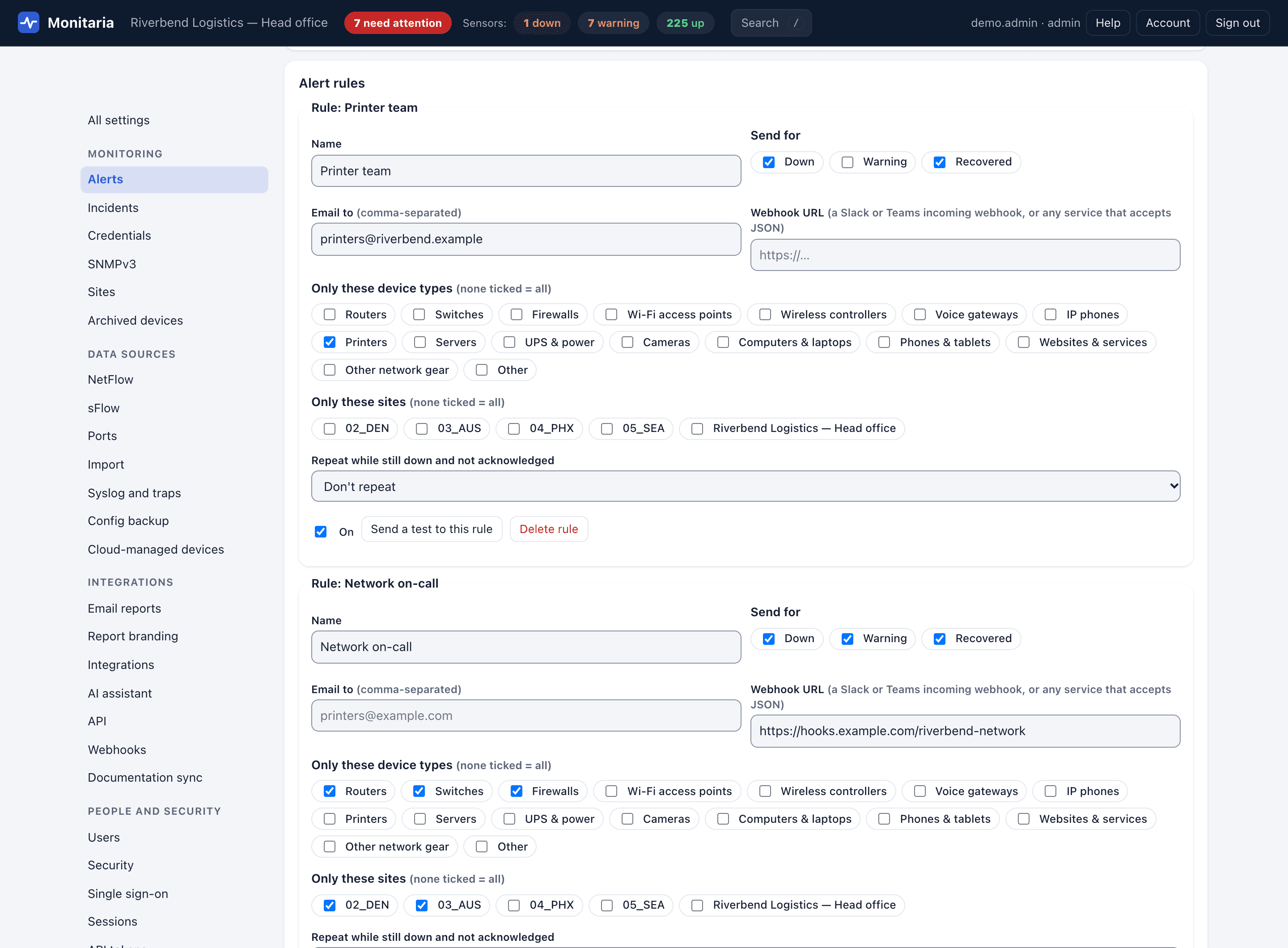
- Printer team: device type Printers, email printers@yourcompany.example, statuses down and recovered.
- Network on-call: Routers, Switches, Firewalls, a Teams or Slack webhook, all statuses.
- Branch manager: site 06_BRANCH, email, down only.
Each rule can repeat its alert every 15 minutes to 4 hours while a sensor stays down and nobody has acknowledged it, so a problem can't sit unnoticed overnight.
A rule with no types or sites matches everything. Webhooks receive JSON with a text field (so Teams and Slack incoming webhooks work as-is) plus structured fields for other tools.
Why you won't get 200 emails when a branch goes offline
- Dependencies: devices at a remote site depend on that site's router or firewall. If it is down, their own alerts are held back and they're labelled Upstream down.
- Flap protection: a sensor goes down only after N failures in a row; a threshold warning must repeat before it counts.
- Maintenance windows silence planned work.
- Endpoints such as laptops are presence-only: absent means offline, never an alert.